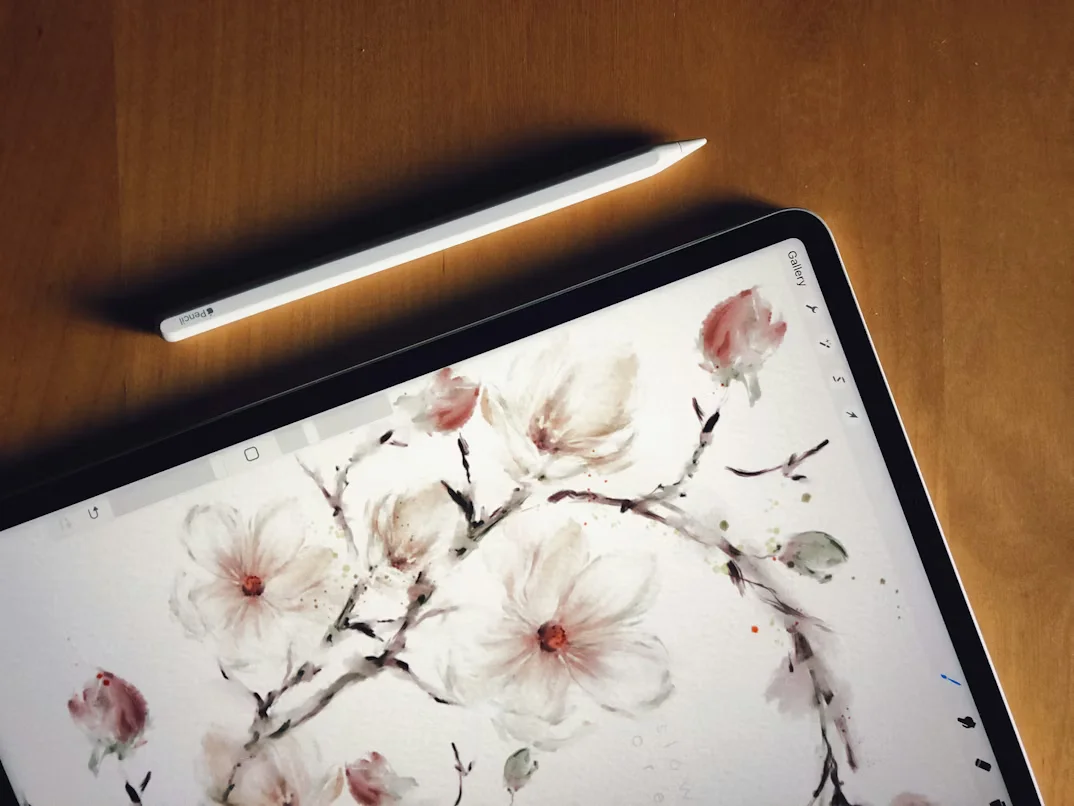
You’ve downloaded Procreate, you have your Apple Pencil, and you’re looking at a blank canvas wondering why everything you draw looks exactly the same as it did with the default brushes. Sound familiar? The answer is almost always the same: you’re using the wrong brushes for what you’re trying to create — or you haven’t yet installed the specialist brush sets that unlock Procreate’s real potential.
This guide covers everything a beginner needs to know about Procreate brushes: what they are, how they work, how to install them, how to organize your library, and — most importantly — how to choose the right brush for the right job. No technical jargon, no assumptions about prior knowledge. Just a clear, practical walkthrough from opening Procreate for the first time to working with a fully equipped brush library.
What Are Procreate Brushes and How Do They Work?
A Procreate brush is a digital tool that defines how marks appear on your canvas when you draw with your Apple Pencil. Every brush is defined by a set of parameters that control its behavior: the shape of the mark it makes, the texture applied to that mark, how it responds to pressure and tilt, how marks blend together, and dozens of other variables.
When you press your Apple Pencil lightly on the canvas, you get one result. When you press harder, you get another. When you tilt the pencil at an angle, the mark changes again. This is called pressure and tilt sensitivity — and it’s what makes drawing in Procreate feel genuinely responsive rather than mechanical. Different brushes use pressure and tilt differently: a watercolor brush might become more transparent with lighter pressure, while a pencil brush might become thinner and lighter. Understanding this relationship between your hand pressure and the brush behavior is the foundation of natural-feeling digital drawing.
Procreate ships with a substantial default brush library organized into categories: Sketching, Inking, Drawing, Painting, Artistic, Calligraphy, and more. These defaults are good — genuinely useful for many applications. But they’re designed to cover the broadest possible range of uses, which means they’re optimized for nothing specific. Third-party brush sets, by contrast, are designed with a specific technique, aesthetic, or application in mind — and that specialization is what produces dramatically better results for specific types of work.
Understanding Brush File Formats
When you download a Procreate brush set, you’ll encounter two file types:
.brush files are individual brushes — a single tool. You import them one at a time and they appear in whatever brush group you have selected when you import.
.brushset files are collections of brushes packaged together as a group. When you import a .brushset file, all the brushes in the collection arrive together in their own labeled group in your brush library. This is the format most professional brush sets use, and it’s the more convenient option for organizing your library.
Some brush sets also include .swatches files (color palettes designed to complement the brush set) and .procreate files (example canvases showing the brushes in use). These are useful reference materials but not required for the brushes themselves to work.
How to Install Procreate Brushes on iPad — Step by Step
Installing brushes in Procreate is straightforward once you know the process. Here’s the complete walkthrough:
Step 1: Download the brush file to your iPad. When you purchase and download a brush set, the file arrives as a ZIP archive. Open the Files app on your iPad, locate the downloaded ZIP file (usually in Downloads), and tap it to extract the contents. You’ll see the .brush or .brushset files inside.
Step 2: Open Procreate and create or open a canvas. You need to have a canvas open to access the brush library. Tap the brush icon in the top right toolbar to open the brush panel.
Step 3: Import the brush file. In the brush panel, tap the + icon in the top right to create a new brush group. Then tap the import button (or simply tap the .brushset file in Files app) — Procreate will automatically import the brushes and create a labeled group in your library.
Alternative method — direct import from Files: Navigate to your .brushset file in the Files app, tap and hold on the file, select Share, and choose Copy to Procreate. The brushes will import automatically.
Step 4: Verify the import. After import, scroll through your brush library to find the new group. Tap any brush to select it and test it on your canvas with a few strokes at different pressures to confirm it imported correctly.
Troubleshooting common import issues: If brushes don’t appear after import, ensure the file has fully downloaded (check your internet connection during download), verify the file is a .brush or .brushset format (not a .zip that still needs extracting), and restart Procreate if the library doesn’t refresh immediately.
How to Organize Your Brush Library
As you build your brush collection, organization becomes increasingly important. An unorganized brush library with hundreds of brushes is almost as frustrating as having no brushes at all — if you can’t find the right brush quickly, you’ll default to whatever is on top regardless of whether it’s the best choice.
Rename brush groups meaningfully. The default group names that come with imported brush sets are often descriptive but inconsistent. Rename them to match how you think about your work: “Watercolor,” “Sketching Pencils,” “Inking,” “Lettering,” “Texture & Grain” are more useful category names than the original pack names.
Create a Favorites group. In the brush panel, tap + to create a new group called “Favorites.” Drag your most-used brushes from their original groups into this Favorites group. When you open a new canvas, your most-used brushes are always at the top of the list.
Move brushes between groups by dragging. Press and hold any brush in the library until it lifts, then drag it to a different group. This lets you reorganize brushes from downloaded sets into your personal category structure.
Duplicate brushes before modifying them. If you want to adjust a brush’s settings (which you can do by tapping the brush name to open its settings), always duplicate it first by swiping left on the brush name and tapping Duplicate. This preserves the original settings and lets you experiment without losing the base brush.
Choosing the Right Brush for the Right Job
The most important skill in using Procreate brushes isn’t the installation — it’s the selection. Using the wrong brush for a job produces frustrating results regardless of technical skill. Here’s how to think about brush selection for the most common Procreate use cases:
For sketching and line art: You want brushes with controlled, consistent line quality that responds predictably to pressure. Pencil brushes for initial sketches, fineliner or technical pen brushes for clean line art. If you’re working in manga or anime style, manga-specific brush sets are designed with the exact line weight conventions and screen tone aesthetics that the genre requires — generic inking brushes rarely achieve the same result.
For digital painting: Blending behavior is the critical factor. A good painting brush set includes separate brushes optimized for different stages of a painting: rough blocking-in brushes, smooth blending brushes, detail brushes, and texture application brushes. Watercolor, acrylic, and oil painting brush sets each simulate the specific physical behavior of their respective media — watercolor blooms and bleeds, acrylic sits with texture, oil blends smoothly.
For lettering and calligraphy: Pressure response is everything. Lettering brushes need to produce thick downstrokes and thin upstrokes in a single, natural movement — this requires a brush specifically designed for the pressure dynamics of calligraphy. Generic brushes that don’t have this characteristic pressure response make brush lettering genuinely difficult regardless of skill level.
For texture and grain: These are typically used as overlay brushes applied over finished or partially-finished work to add an organic, non-digital quality. Grain brushes work best at low opacity on a separate layer above your main illustration, building up texture gradually rather than applying it all at once.
For illustration and character work: Pose reference stamps and facial feature stamps dramatically accelerate the figure construction phase, letting you focus creative energy on the design, costume, and expression rather than anatomical placement. Environment and landscape brush sets handle the complex background elements — trees, foliage, water, rocks — that would otherwise require significant time to build from scratch on every project.
The Best Procreate Brush Sets for iPad Artists
If you’re building your brush library and don’t know where to start, our curated collection of the best Procreate brush sets covers every major artistic style and technique. From massive 5000-brush anime bundles to focused 15-brush texture sets, there’s a starting point for every type of iPad artist:
→ Your iPad Can Do More Than You Think: 36 Procreate Brush Sets That Prove It
That guide covers watercolor and acrylic painting kits, manga and anime brush sets, lettering brushes, tattoo design brushes, surface pattern design tools, and the mega-bundles that give you everything in one purchase.
Procreate Brushes vs Default Brushes: When to Use Each
Default Procreate brushes are genuinely good for: quick sketches, exploring ideas before committing to a style, general-purpose drawing when a specific aesthetic isn’t required, and learning the fundamentals of digital drawing before investing in specialist tools.
Third-party brush sets are worth investing in when: you’re working in a specific style that has its own visual conventions (manga, watercolor, folk art), you find yourself fighting against default brushes to get the result you want, you’re creating work professionally or for sale where technical quality directly matters, or you’ve been using Procreate for a while and feel like you’ve hit a ceiling with the default tools.
A practical approach for beginners: spend your first month with Procreate using only the default brushes to understand the fundamentals of pressure sensitivity, layer management, and the basic drawing workflow. Then add specialist brushes for the specific areas where you want to develop — this gives you a clear before/after comparison that helps you understand what each specialist brush is actually doing.
Working with Color Palettes Alongside Brushes
Brushes and color palettes work together — having a harmonious, pre-built color palette loaded in Procreate means you spend time painting rather than searching for colors that work together. Procreate color palettes import the same way as brushes: download the .swatches file, tap it in Files app, and it appears in your Procreate color palette panel.
Skin tone palettes are particularly valuable for portrait and character artists — getting skin tones right is one of the most challenging aspects of portrait painting, and a professionally designed skin tone palette that covers light, medium, and dark complexions with warm, cool, and neutral variants removes the color selection difficulty and lets you focus on the painting itself.
Advanced Tips for Getting More From Your Brush Sets
Use brushes on separate layers. Apply different brushes on different layers — base color on one layer, texture on another, highlights on a third. This gives you the flexibility to adjust each element independently without committing to the combined result. It also lets you experiment with blending modes between layers to create effects that no single brush can produce alone.
Adjust opacity and flow for each brush. In the Procreate brush panel, there are two sliders at the top: opacity and flow. Opacity controls the maximum transparency of the brush. Flow controls how quickly the brush builds to that maximum opacity. For painting and blending work, low flow settings (10-30%) let you build color gradually in a way that mimics traditional painting techniques. For inking and line art, full opacity and full flow give you clean, decisive marks.
Experiment with StreamLine. StreamLine is a Procreate setting that smooths your brush strokes by averaging the path of your pencil movement. For inking and lettering, StreamLine 50-70% produces cleaner, more controlled lines. For sketching where you want natural-looking, loose marks, lower StreamLine or turn it off entirely. This setting is in each brush’s settings panel under Stabilization.
Test new brushes on a dedicated test canvas. When you import a new brush set, spend 15-20 minutes on a dedicated test canvas trying each brush at different pressures, tilts, and opacities before using them in a real project. Understanding what each brush does in isolation makes you much more effective at reaching for the right tool when you need it in actual work.
Building Your Procreate Toolkit: A Recommended Starting Point
For a beginner building their first serious Procreate brush library, here’s a practical starting point:
A good sketching pencil set for initial drawing and loose exploration. The default HB pencil is fine, but a dedicated sketching pencil set with multiple weights gives you more natural-feeling results.
A clean inking brush set with at least three options: a fine detail brush, a standard inking brush, and a brush pen for thicker, more expressive marks.
One painting set matched to your preferred painting style — watercolor, acrylic, or gouache are the most popular starting points for digital painting beginners.
A texture and grain set for adding organic quality to finished illustrations.
A lettering set if you do any hand lettering or typography work.
This five-category foundation covers the majority of Procreate work and gives you a solid base to expand from as your practice develops. If you’re not sure which specific sets to start with, our full brush set guide has curated recommendations across every category:
→ 36 Procreate Brush Sets Reviewed and Recommended
Procreate Brushes for Specific Creative Niches
For digital fashion illustration and design: The Alcohol Marker and Copic-style brush sets replicate the smooth blending behavior that fashion illustrators love in traditional markers. Paired with a clean inking set, these produce the crisp line and smooth wash combination that defines fashion illustration.
For surface pattern design: Seamless flower pattern brushes and fabric texture brushes dramatically accelerate the pattern design workflow — each brush stroke can generate a complete repeating pattern element. This is particularly relevant if you sell surface pattern designs through licensing or use them for textile design projects. If you’re creating patterns for products to sell, our guide to spring SVG and craft designs covers a range of pattern resources: Spring SVG & Craft Designs.
For tattoo design: Dedicated tattoo brush sets cover the specific line weight conventions, shading techniques, and flash design workflows that tattoo artists need. These brushes are designed to produce the authentic mark quality of tattoo work rather than generic illustration marks.
For typography and lettering on iPad: If you create custom lettering work, pairing your Procreate brush lettering skills with high-quality digital fonts gives you a complete typographic toolkit. Our handwritten font guide covers the best script and calligraphy fonts for complementing hand-lettering work: 35 Handwritten & Script Typefaces That Actually Stand Out.
Frequently Asked Questions About Procreate Brushes
Do Procreate brushes work on all iPad models? Yes — Procreate brushes work on any iPad model that runs the Procreate app. However, brush performance (particularly the pressure sensitivity and tilt response) is best experienced with an Apple Pencil. The first-generation Apple Pencil works with older iPad models; the second-generation works with iPad Pro and iPad Air models from 2018 onward. The Procreate app itself requires iPadOS 16.4 or later.
How many brushes is too many? There’s no technical limit, but practically, a library of 500+ brushes with poor organization is harder to use than a library of 100 well-organized brushes. Focus on quality and organization over quantity — a curated library of brushes you actually understand is more valuable than a massive collection where 90% of the brushes get ignored.
Can I use Procreate brushes in other apps? No — .brush and .brushset files are Procreate-specific formats. They don’t work in Adobe Fresco, Clip Studio Paint, or any other drawing application. Some brush makers offer equivalent sets for other platforms, but these are separate products rather than cross-platform files.
Are free Procreate brushes worth using? Many free brush sets are genuinely high quality — designers often release free brushes as portfolio demonstrations or promotional samples from larger paid sets. The key is finding free brushes from reputable sources rather than randomly downloaded files. The main limitation of free sets is usually range and variety rather than quality of individual brushes.
How do I delete a brush set I no longer use? In the brush library, swipe left on the brush group name to reveal the Delete option. Note that deleting a brush set is permanent — there’s no trash can to recover from. If you’re not sure you want to permanently delete a set, move it to a Hidden group instead by creating a group called “Archived” and dragging unused sets into it.